Platform
Technicalities
The technical setup of the platform is as follows:
Multi-tenant set-up.
Supabase back-end (database).
Stripe payment support.
platform roles
There are 3 roles on the platform:
User Role: A regular user role for anyone who is not assigned as Company Admin.
Company Admin Role: For setting specific parameters and variables for your Company to enhance standardisation.
System Admin Role: myControlz management & support.
WORKING environments
There are currently two working environments in operation:
Portfolio Environment: Maintain investment category budgets, and evaluate, categorise, prioritise projects within your Company portfolio.
Project Environment: Manage your project from start until end, and your stakeholders.
stage gate model
Within both the Portfolio- and Project Environment, we integrated a Stage Gate Model with Project Phases and Approval Gates:
We offer specific controls per Project Phase.
You can use the Project Gates to request an approval to move to the next phase.
When you select a specific Project Phase, its colour is changed to blue. You can see the controls related to this phase in the Side Menu on the left.
On the Company Admin Page, the Company Admin can change the naming of Project Phases and identify which gate initiates a formal budget approval flow (Gate colour is red in that case).
A completed Project Phase is visualised with a solid line below the Project Phase; an open Project Phase with a dotted line.

Project complexity.
The need for specific controls also depends on the complexity of your project. For high complexity projects it is recommended to use all available controls, for low complexity projects not. In the Project Charter you can set the Project Complexity for your project, using the following guidelines:
Low Complexity: Low CAPEX, Single scope, minimal risks, one or two suppliers, none or minimal civil works, …
Medium Complexity: Some different scopes and interfaces, some suppliers and contractors, some civil works, …
High Complexity: High CAPEX, introduction of new technologies, multiple scopes and complex interfaces, multiple stakeholders, several civil packages, …
Navigation
The navigation on top of the screen shows from left to right:
Dropdown menu to select the Environment.
Quick link to logout.
Home icon to go directly to the Home Page.
Account Page icon to go directly to your Account Page.
Notifications badge which indicates the number of unread messages.
Community Page icon which redirects you to the Community Page.
Company Admin Page icon which leads you to the Company Admin Page (which can only be edited by the Company Admin Role).
header
First section:
The project name, and button to create a new project.
The Portfolio Status as set in the Company Portfolio App (when used).
In the Project Charter selected Project Complexity (low, medium, high).
Selected Month for the visualised data in the main content area.
Second section: The Stage Gate Model:

Blue coloured Project Phase, is the selected Project Phase which also renders the applicable (and purchased) controls of the selected Project Phase in the Side Menu.
The Project Phase with a dotted line beneath, is the current Project Phase where you are working in.
The Project Phase with a solid line beneath, is the last completed Project Phase (for which the gate iafterwards is approved and completed).
The red coloured gate is the gate which initiates an (external) approval flow for project budget approval within your company.
Third section:
Control or App Name.
The latest stored version number.
The selection of the Month related to the version number.
When applicable for the application, a specific performance score, the target as set in the Project Charter, the KPI, and trend.
Fourth section:
Toggle switches to hide/show charts or specific tables, to enhance your workflow.
main content
In this area the main content (tables and charts) of a specific control is visualised. When you select another Project Phase, the main content remains the same until you select another control.
You can simply copy a chart by pointing the icon on the right bottom of the chart.
At the right side of some of the tables there is an Edit icon to edit the row, a Delete icon to delete the row, and an Approve button to initiate an approval flow.
Footer
In the Footer below the Main Content Area we covered some important actions buttons and icons for your convenience.

The SAVE button stores a specific version of the data of your app.
The RESTORE button enables you to restore an older version of the SAVED data.
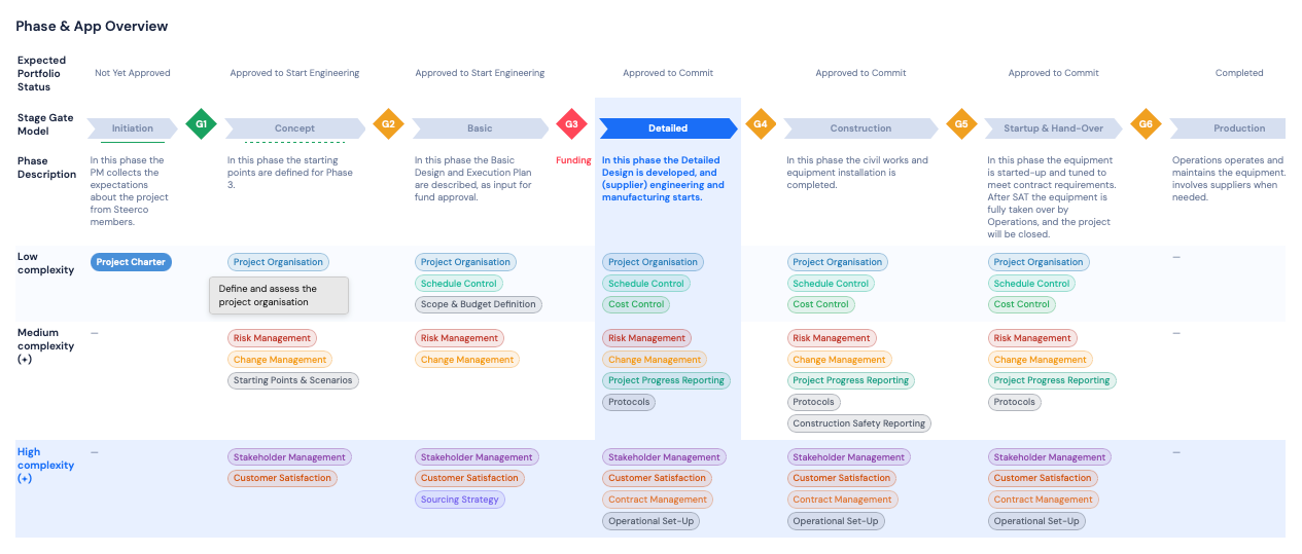
When pushing the OVERVIEW button, a window appears with an overview of the Stage Gate Model, your purchased applications, and indicating how your project is positioned in terms of Project Phasing and Project Complexity.
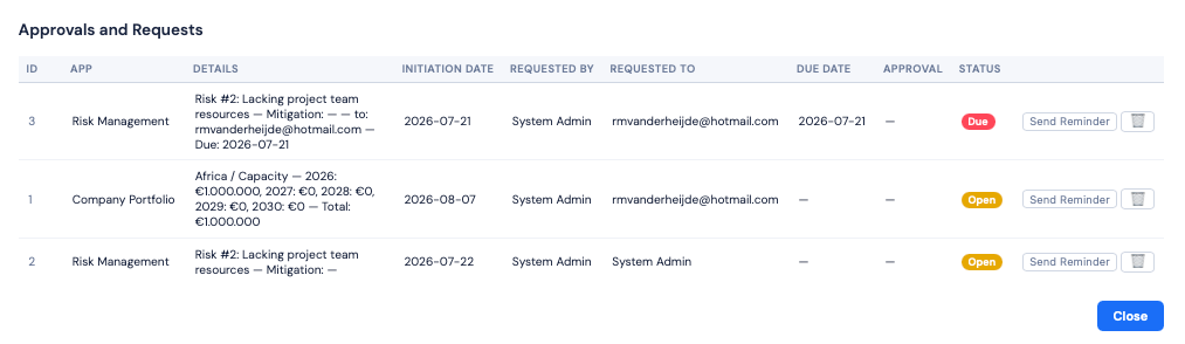
When pushing the CONTROL button, a window appears with an overview of all requested approvals.
The Share Report icon is to share a PDF version of your current screen to a specific recipient.
The Tutorial icon links to more information about the app on www.mycontrolz.com.
The Share Report icon is to share a PDF version of your current screen to a specific recipient.
The Chat icon is to send a message to the System Admin.
The Download Data icon is to directly download your current app data to an Excel format.
The Feedback icon is to give feedback about the current application.
side menu
In the Side Menu the applicable controls of the selected Project Phase are shown.
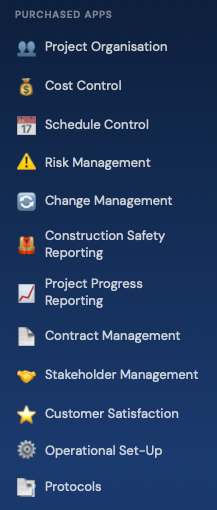
The Account Page is a personal page where a user can define preferences and purchase controls.
Profile
Here each User needs to complete some personal details, and confirm the general conditions.
subscriptions
In this section the User can Try-Out, Purchase, or Stop the subscription of a certain control or application.
You can choose between Read or Write. “Read” means that you purchase the app with Read-Only rights, so you can only read and not edit the data which has been added by another user within your company. This is recommended for Stereo members and other stakeholders which do not actually produce project deliverables. “Write” means having the full edit authority.
Try-Out period is 1 week. Afterwards you cannot Try the same app anymore.
When you have not purchased a specific app, then it is not possible to integrate the related data into Project Target Setting or Project Progress Reporting.
Company team
In this overview you can see who else from your company is using the platform and specific apps.
billing overview
In this overview you can see the total value of your last received invoice, and the total value of your upcoming invoice – based upon your ‘try-out’ and ‘purchase’ confirmations in the Subscriptions Section.
Notifications
In this section the you can read and delete any notification sent to you.
The number of unread notifications is also indicated in the notifications badge in the header.
You can receive notifications from the System Admin (not so often), from controls/applications where you have indicated that you want to be notified in case of a specific change or receiving input, and for requested approvals in approval flows.
If you would like to, you can enable the platform to send you an email whenever you receive a notification.
The Company Admin Page is the site where the Company Admin can edit parameters and standardise variables within the Company.
List of company users
In this section the Company Admin Role has an overview of all Users within the company, and can move the Company Admin Role to another person within the company.
Portfolio Status
In this section the Company Admin Role can indicate which Portfolio Status a certain project should have in a specific Project Phase. Defaults:
Phase 1
“Not yet approved”.
Phase 2 & 3
“Approved to start engineering”.
Phase 4, 5 & 6
“Approved to commit”, meaning that the project is allowed to sign-off contracts and commit to suppliers and contractors.
Phase 7
“Completed”, meaning that the project should have been completed before entering this phase (which is actually no project phase anymore).
project phases & gates
In this section the Company Admin Role can change Project Phase and Gate names of the Stage Gate Model, and relate Project Phases to expected Portfolio Status.
Regions
In this section the Company Admin Role can change Project Phase and Gate names of the Stage Gate Model, and relate Project Phases to expected Portfolio Status.
investment Categories
In this section the Company Admin Role can edit the Investment Categories which are especially useful for Portfolio Management where budgets per investment category are aligned with estimated project cost for projects within the same investment category.
kpi thresholds and trending
In this section the Company Admin Role can edit threshold levels for specific Performance Area which results in conditional formatting (green, yellow, red) for the applicable KPI, and the trending definition.
Risk & Change impact level
In this section the Company Admin Role can change the impact levels for neglectable, small, moderate, significant, and severe, for both the Risk Management App as the Change Management App.
Project organisation
In this section the Company Admin Role can edit the standard project teams under the Project Manager and Project User.
Starting points categories
In this section the Company Admin Role can edit the categories for the starting points in the Starting Points & Scenarios App.
Construction safety
In this section the Company Admin Role can edit the categories for
Apps purchased by company
In this section there is an overview of all apps purchased within the company.
project score criteria per category
In this section the Company Admin Role can edit the specific criteria used for comparing projects within the portfolio for a specific Investment Category. Maximum is 5 criteria.
supplier / contractor / consultant list
In this section the Company Admin Role can manage the total list of suppliers, contractors and consultants within the Company, assuring that individual projects only select resources from one standard list. The Company Admin assures that the following information per resource is updated continuously:
Technical Validation: the resource is validated on its technical capabilities and quality performance.
Commercial Validation: the resource is validated on confirming commercial conditions.
Safety Validation: the resource is validated on their safety performance and systems.
Performance: the resource is validated on their overall performance in past projects.
cost control
In this section the Company Admin Role can edit the cost buckets and cost categories for Cost Control.
data management
In this section the Company Admin Role can initiate deletion of specific project data.
system settings
In this section the Company Admin Role can define whether a dot system or comma approach is applied for numbering.
The Communicate Page is a generic page for all users bringing peers together.
Apps in development
In this section you have an overview of controls and applications which are currently in development. The System Admin maintains the overview.
Apps on the roadmap
In this section you have an overview of controls and functionality which are foreseen for the future but not yet in development. You can vote to enable the System Admin to prioritise.
App feedback
In this section you have an overview of the feedback given by users.
News
In this section you can read the latest news items and updates as shared by the System Admin.
Help needed & more
In this section you can help peers to answer their questions, or submit your own questions to the community.